For the iPhone and Android app
5 · Messages
Direct messages — and the expression layer that makes them feel like a conversation.
Contents
Start a conversation
- Tap Messages → the new-message button, and pick someone.
- Or open their profile and choose to message them.
- Write and send. Photos ride along with the 🖼 button.
- Messages from people you don't follow land in Requests, not your Inbox.
- Accept a request to move it across; decline and they're not told.
- Who may message you at all is set in Messages → the gear icon → Message settings — not the main Settings tab. Choose Everyone, People you follow, or No one.
- A message can be up to 4,000 characters — far longer than a post.
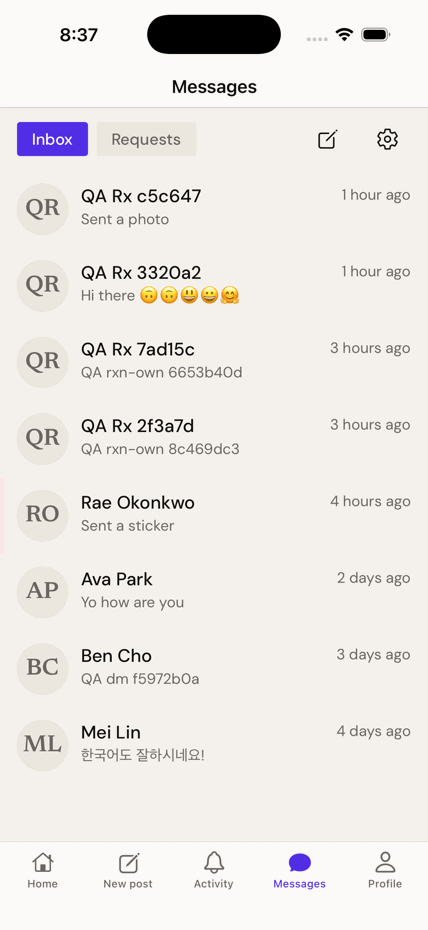
React to a message
- Press and hold any message.
- Tap one of the quick reactions — ❤️ 💡 🤝 😂 😮 — or + for any emoji at all.
- The reaction appears as a chip under the message. Tap your own chip to take it back.
- Later, use the ☺+ chip beside existing reactions to add another without the long press.
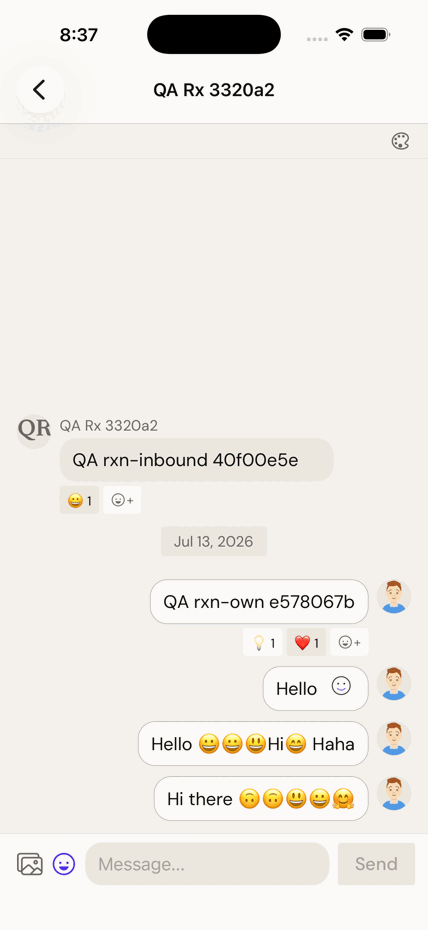
- A reaction never sends a notification and never marks the chat unread.
- On the web you get the same five reactions, but no "+" for arbitrary emoji.
Message reactions, stickers and conversation colours are switched off in the shipping app and on in demo builds. If you don't see them, that's why — nothing is broken.
Emoji and stickers
Two different things, and the difference matters.
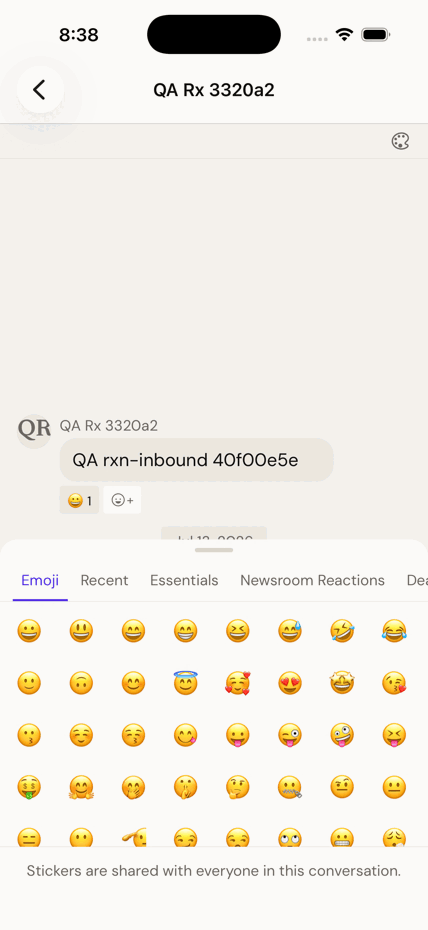
- Tap the ☺ button beside the message box. (In DMs this button belongs to the sticker tray — if stickers are off in your build, use your keyboard's own emoji key instead.)
- The Emoji tab types a normal emoji into your message — between words, deletable with backspace.
- The other tabs — Essentials, Newsroom Reactions, Deal Flow, After Hours — are Shiijak's own drawn stickers.
- Tapping a sticker stages it; nothing sends until you press Send. Send it alone and it arrives large; send it with text and it sits inline, at text size.
Colour-code a conversation
Give a chat a colour so you always know which thread you're in. Only you ever see it.
- In a conversation, tap the 🎨 palette icon at the top-right.
- Pick a colour — Paper, Rose, Sage, Sky, Butter, Lilac, Slate, Crimson.
- The thread takes on that wash, and the conversation gets a matching stripe in your inbox.
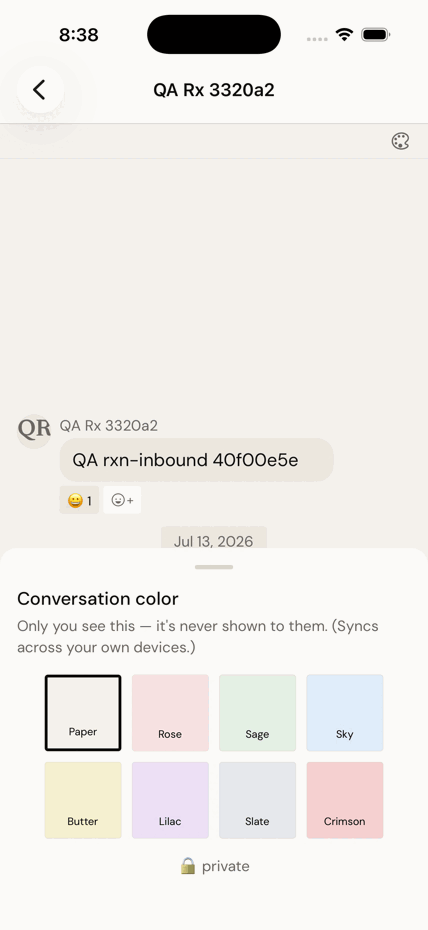
- The colour is never shown to the other person, and never announced.
- It follows you across your own devices.
- Its real job is wayfinding: you never reply in the wrong thread again.
Sending with no signal
Once you press Send, the message is yours to keep — it survives losing signal, quitting the app, even a reboot.
- Send normally. Offline, the message waits in a queue and shows as queued.
- When you're back online it sends itself, in the order you wrote them.
- A message that truly failed can be tapped to retry, or long-pressed to copy or delete.
Calling someone — not from the phone
If you've gone looking for a call button in a conversation and can't find one, you haven't missed it.
There is no calling in the phone app. Video calls — with screen sharing — live on
shiijak.com, where you ring someone from inside a conversation. It's the one thing the
browser does that your phone can't.