For the iPhone and Android app
The Shiijak user manual
Every chapter on one page — for reading straight through, printing, or searching with your browser's own find.
1 · Getting started
Making an account, getting in, and the first five minutes.
Create an account
Install Shiijak on your iPhone or Android phone and open it. You can join with an email and password, or with Google or Apple — either way you land in the same place.
- Open the app. You'll meet a short intro carousel; tap Claim my spot at the bottom. (Already a member? Tap Sign in beside it.)
- Fill in your email, the @username you want, a password, and your display name — the name people actually read. A short bio is offered, and it's optional.
- Or skip all that: tap Continue with Google / Continue with Apple.
- Allow notifications when the phone asks, unless you'd rather not — you can change it later in Settings → Notifications.
- We email you a verification link. You can look around before clicking it, but verify soon — a banner at the top of your feed keeps nudging you.
- Finally, pick what you're into — you choose starter topics (Books, Magazines, Life Lessons), not people. Tap the cards, then Go to my feed. You can Skip and decide later.
- Display name is required — not optional, despite what older screens implied.
- You must be 16 or older.
- A username can be changed later; old links to your profile keep working for a while.
Signing up with Google or Apple creates no password. If you later try to sign in with an email and password, the app will tell you the account uses social sign-in and hand you the right button — it isn't a wrong-password problem, and there's nothing to reset.
Sign in and sign out
- Sign in with email + password, or the same Google/Apple button you signed up with.
- Forgot it? Choose Forgot password and follow the emailed link.
- To sign out: Profile → Settings → Sign out (at the bottom, in red).
If you signed up with Google or Apple, you have no password to reset — use the same button to get back in.
The five buttons at the bottom
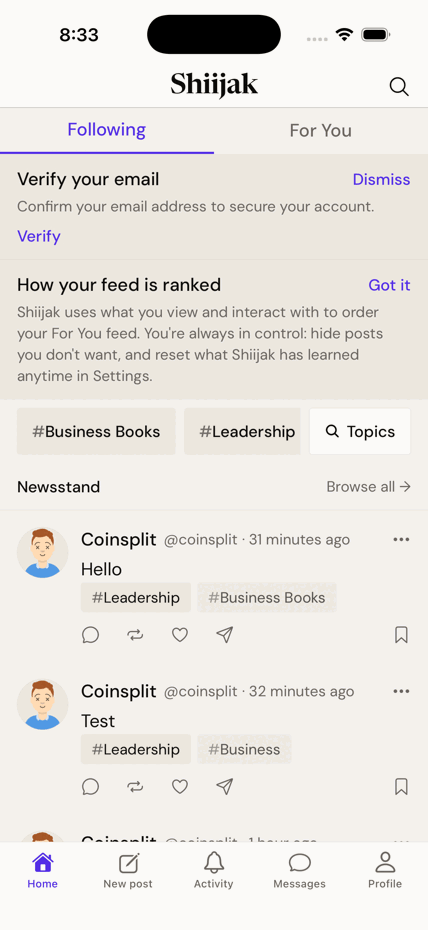
Everything in the app hangs off these: Home, New post, Activity, Messages, Profile.
2 · Writing & posting
The composer, topics, photos, and the fifteen minutes in which you can still fix a typo.
Write a post
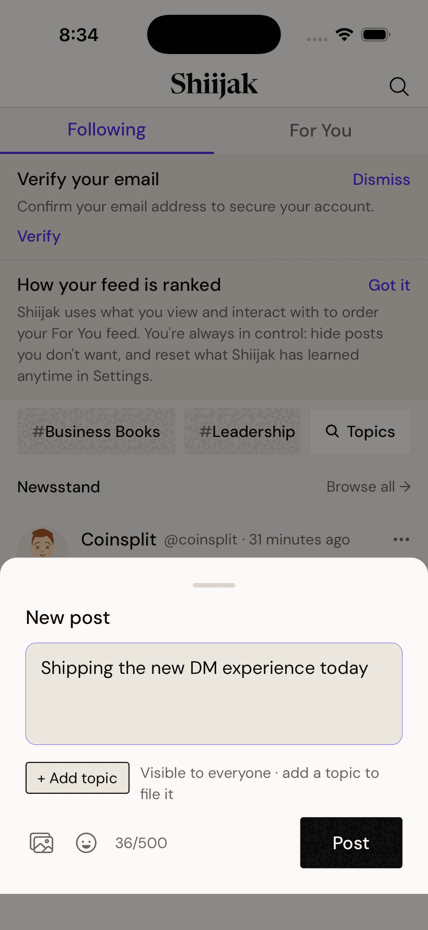
- Tap New post in the bottom bar.
- Type. The counter shows 0/500; it turns against you as you approach the limit.
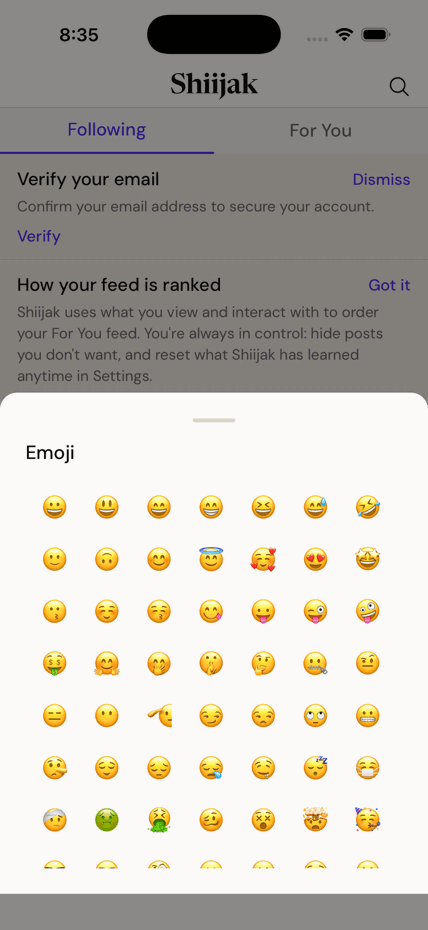
- Optional: add a photo (🖼), an emoji (☺), or a topic (below).
- Tap Post. A confirmation appears with a VIEW shortcut to your new post.
- 500 characters per post.
- One photo per post (with optional description for screen readers, up to 1,000 characters).
- Paste a link and a preview card appears automatically. Dismiss it with ✕ if you'd rather not show it.
File a post under a topic (and up to two more)
Topics are how a post gets found later. A post can carry up to three: a main topic plus up to two "also relevant" ones.
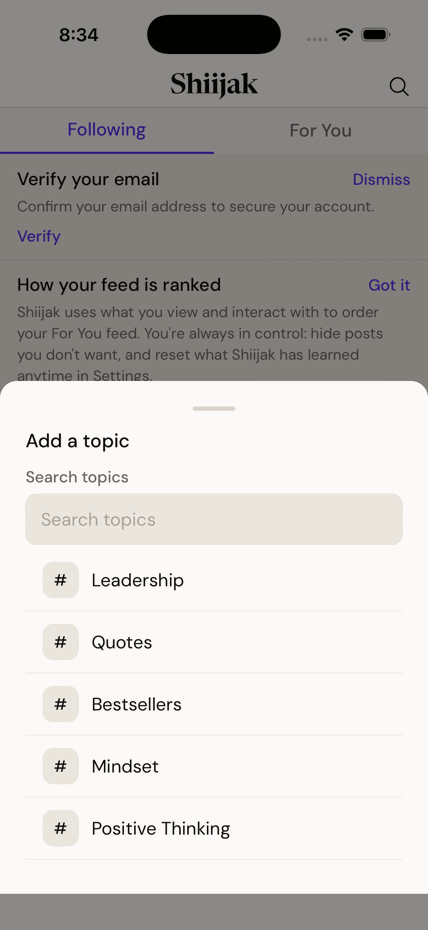
- In the composer, tap + Add a topic.
- Search or pick from the list — Leadership, Bestsellers, Mindset…
- The topic appears as a chip under your draft. Tap the chip's label to swap it; tap ✕ to remove it.
- Shortcut: type
#in the body and an autocomplete appears — choosing from it files the post too. - Tap + Add another topic to file a second or third one. Each additional topic shows as a dimmer chip marked · also relevant. Three is the maximum, and they can't be the same topic twice.
- Posting from inside a topic page pre-fills that topic for you (Post in Leadership).
- All of a post's topics show everywhere it appears, and the confirmation names them.
- A topic is filing, not an audience: it never changes who can see the post.
- Replies never take topics — the slot is hidden in reply mode.
Fix a typo — the 15-minute window
- On your own post, open the ··· menu and choose Edit.
- Change the text and save. The post shows a quiet · Edited mark afterwards.
You can only edit for 15 minutes after posting.
You get at most 5 edits.
And the moment anyone reposts it, editing is locked forever — even inside the 15 minutes. Someone else has vouched for those words; they don't change under them.
Delete a post
- Open the post's ··· menu.
- Choose Delete post (in red) and confirm.
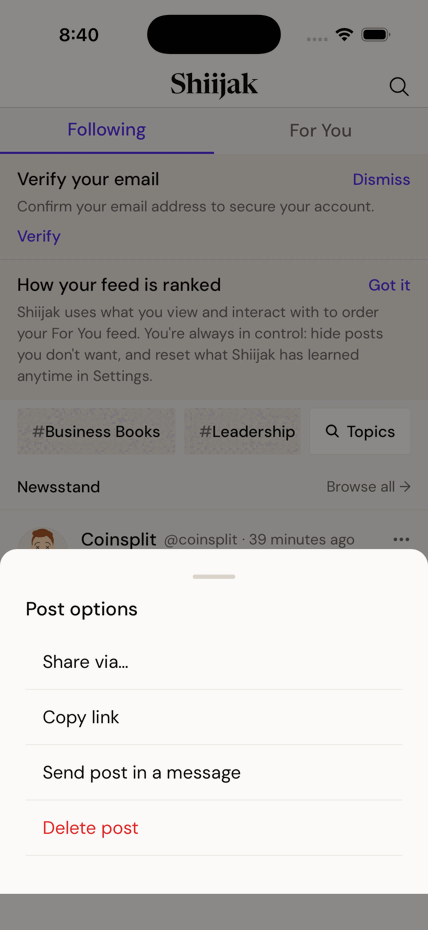
Deleting is permanent. There's no undo and no bin. If people replied, their replies remain — your post becomes a "deleted" placeholder above them.
Decide who may quote you
Quoting wraps your post inside someone else's commentary. You choose who's allowed.
- Per post: pick the option in the composer before you post.
- For everything: Settings → Who can quote my posts.
- Three choices: Anyone · People I follow · Nobody.
3 · Reading & engaging
The two feeds, and the five things you can do to a post.
Following vs For You
- Following — only people you follow, newest first. Predictable.
- For You — ranked by what you read and engage with.
- The How your feed is ranked card explains it in plain English; Got it dismisses it.
- Hide a post you don't want more of, or reset everything Shiijak has learned in Settings.
- A New posts pill appears when fresh posts arrive — you choose when to jump.
Reply
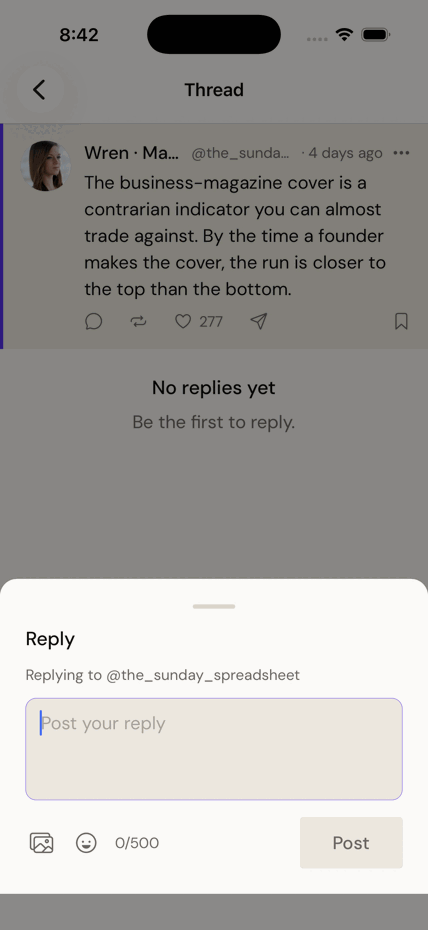
- Tap the 💬 icon under a post.
- Write your reply (same 500-character limit) and tap Post.
Repost, or quote
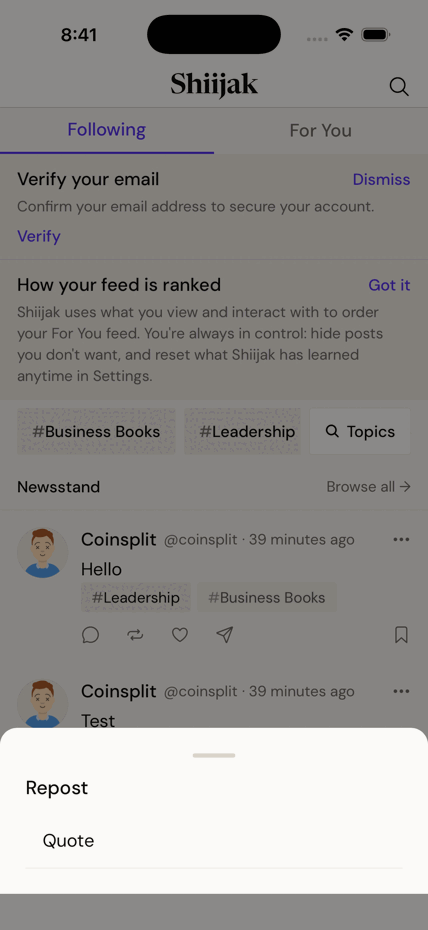
Two different moves behind the same ⟳ icon.
- Tap the ⟳ icon under a post.
- Choose Repost — passes it to your followers as-is, with your name on top.
- Or choose Quote — opens the composer with the post attached, so you can say why.
- Tap ⟳ again on something you reposted to Undo repost.
Endorse a post
- Tap ♡ to like.
- Or press and hold ♡ for the fuller vocabulary: Like, Insightful, Respect, Endorse.
- Tapping your existing choice removes it; picking another swaps it.
Save a post for later
- Tap the 🔖 bookmark on any post.
- Find them all again: Profile → Saved.
- Group them into Collections if you save a lot.
- Saving is invisible. Nobody is told you saved their post.
Share a post
- Tap the ➤ icon, or the ··· menu.
- Share via… hands it to your phone's share sheet.
- Copy link puts a public link on your clipboard.
- Send post in a message passes it to someone in a DM.
See less of something
- Hide a single post from the ··· menu — it leaves your feed and teaches the ranking.
- Mute a person to stop seeing them without unfollowing or telling them.
- Mute words in Settings to keep a subject out of your feed entirely.
4 · Topics & the Newsstand
Shiijak is organised like a magazine rack. This is the rack.
Follow a topic, and pin it
- Open any topic (tap a #chip on a post, or search).
- Tap Following to follow it — its posts start reaching your feeds.
- Tap ★ Pinned to Home to park it as a shortcut at the top of Home. Eight pins maximum — after that you'll be told the rail is full (you still follow the topic; pinning only controls the shortcut).
Browse the Newsstand
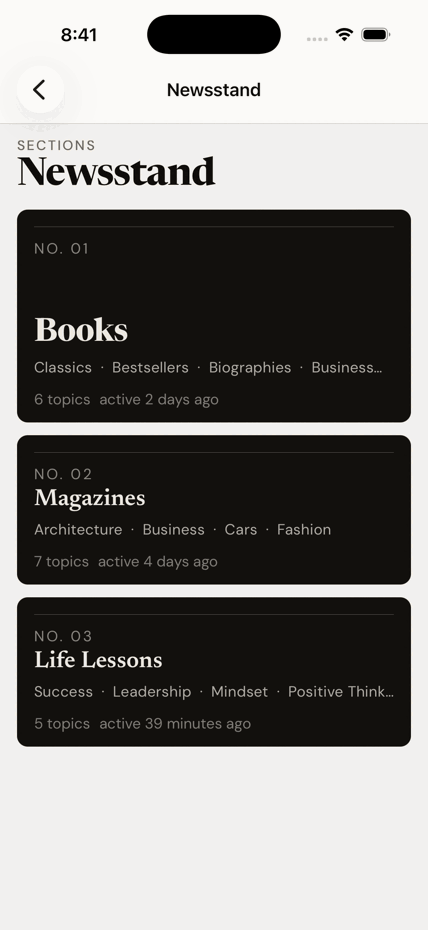
Topics are grouped into sections — Books, Magazines, Life Lessons — like a masthead.
- On Home, tap Newsstand or Browse all →.
- Pick a section to see its topics, then a topic to read it.
Search
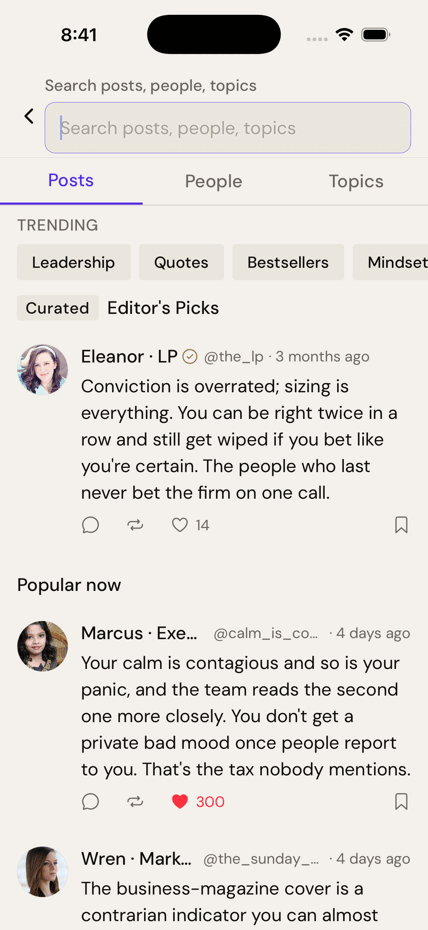
- Tap the 🔍 in the top-right of Home.
- Search people and posts; recent searches are remembered.
5 · Messages
Direct messages — and the expression layer that makes them feel like a conversation.
Start a conversation
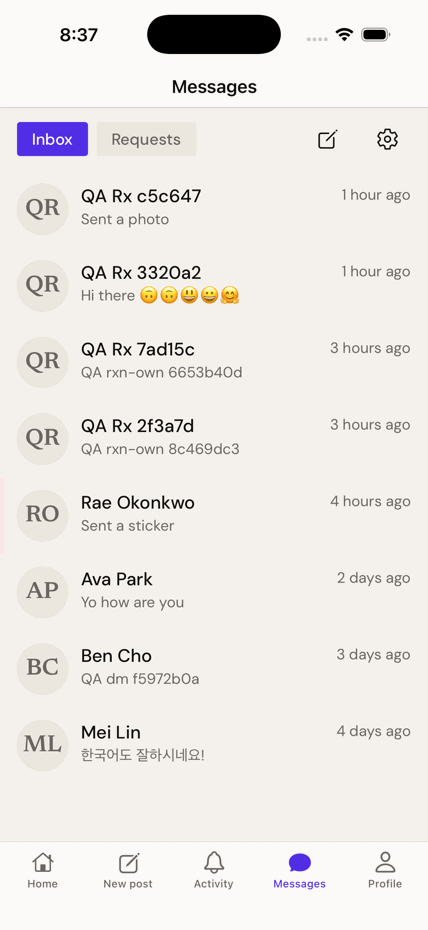
- Tap Messages → the new-message button, and pick someone.
- Or open their profile and choose to message them.
- Write and send. Photos ride along with the 🖼 button.
- Messages from people you don't follow land in Requests, not your Inbox.
- Accept a request to move it across; decline and they're not told.
- Who may message you at all is set in Messages → the gear icon → Message settings — not the main Settings tab. Choose Everyone, People you follow, or No one.
- A message can be up to 4,000 characters — far longer than a post.
React to a message
- Press and hold any message.
- Tap one of the quick reactions — ❤️ 💡 🤝 😂 😮 — or + for any emoji at all.
- The reaction appears as a chip under the message. Tap your own chip to take it back.
- Later, use the ☺+ chip beside existing reactions to add another without the long press.
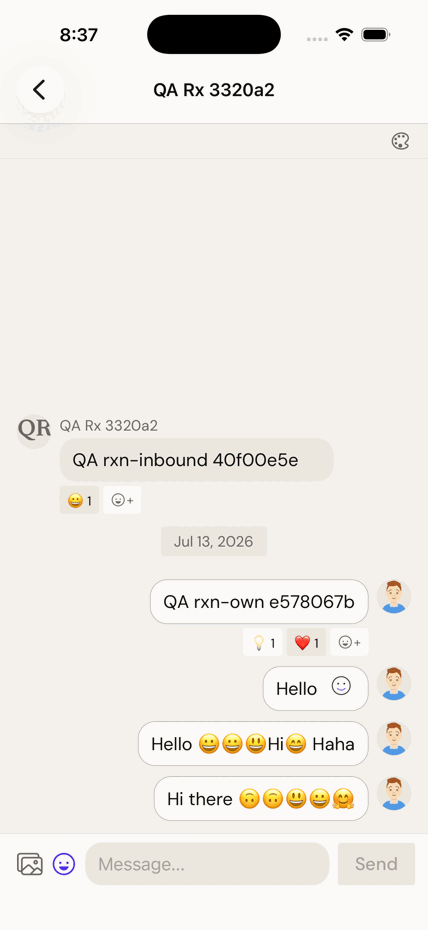
- A reaction never sends a notification and never marks the chat unread.
- On the web you get the same five reactions, but no "+" for arbitrary emoji.
Message reactions, stickers and conversation colours are switched off in the shipping app and on in demo builds. If you don't see them, that's why — nothing is broken.
Emoji and stickers
Two different things, and the difference matters.
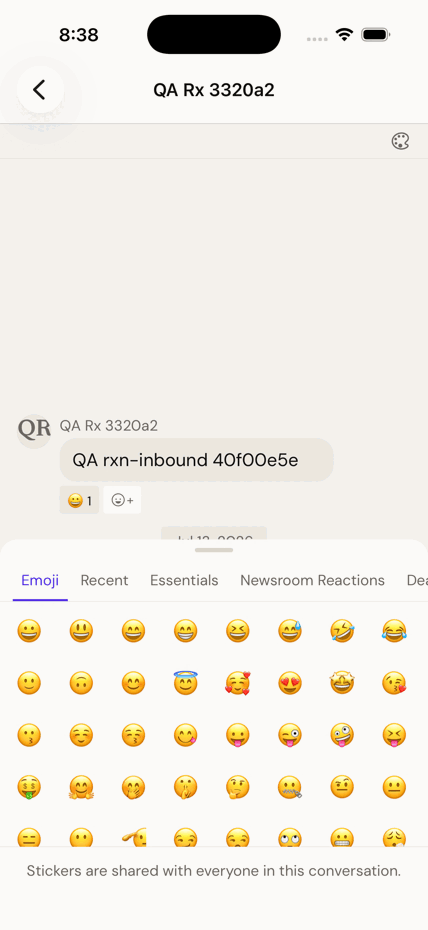
- Tap the ☺ button beside the message box. (In DMs this button belongs to the sticker tray — if stickers are off in your build, use your keyboard's own emoji key instead.)
- The Emoji tab types a normal emoji into your message — between words, deletable with backspace.
- The other tabs — Essentials, Newsroom Reactions, Deal Flow, After Hours — are Shiijak's own drawn stickers.
- Tapping a sticker stages it; nothing sends until you press Send. Send it alone and it arrives large; send it with text and it sits inline, at text size.
Colour-code a conversation
Give a chat a colour so you always know which thread you're in. Only you ever see it.
- In a conversation, tap the 🎨 palette icon at the top-right.
- Pick a colour — Paper, Rose, Sage, Sky, Butter, Lilac, Slate, Crimson.
- The thread takes on that wash, and the conversation gets a matching stripe in your inbox.
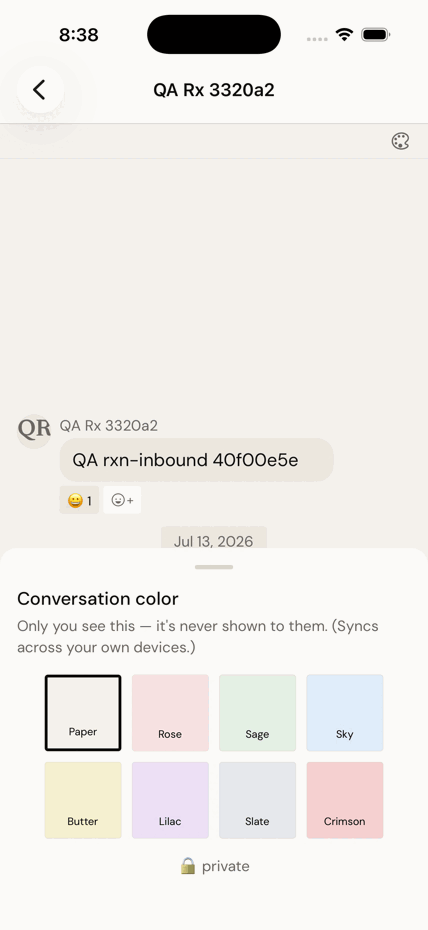
- The colour is never shown to the other person, and never announced.
- It follows you across your own devices.
- Its real job is wayfinding: you never reply in the wrong thread again.
Sending with no signal
Once you press Send, the message is yours to keep — it survives losing signal, quitting the app, even a reboot.
- Send normally. Offline, the message waits in a queue and shows as queued.
- When you're back online it sends itself, in the order you wrote them.
- A message that truly failed can be tapped to retry, or long-pressed to copy or delete.
Calling someone — not from the phone
If you've gone looking for a call button in a conversation and can't find one, you haven't missed it.
There is no calling in the phone app. Video calls — with screen sharing — live on
shiijak.com, where you ring someone from inside a conversation. It's the one thing the
browser does that your phone can't.
6 · Your profile & privacy
Who you are here, who can see it, and how to leave.
Edit your profile
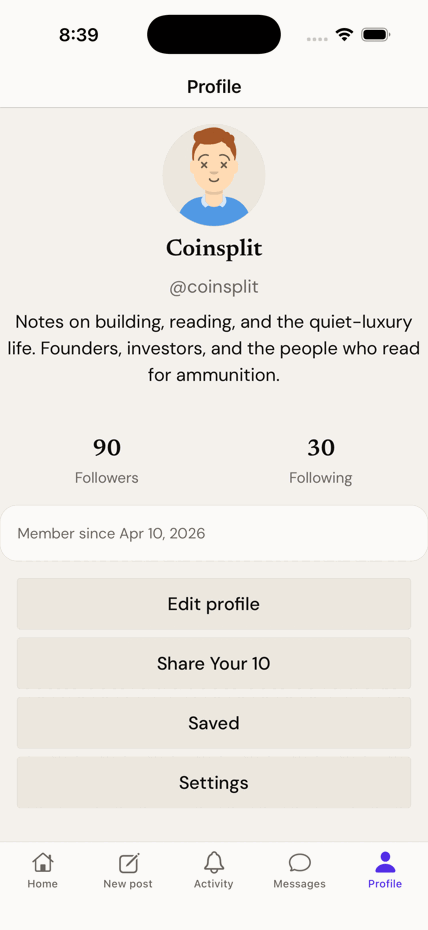
- Profile → Edit profile.
- Change your display name, bio, and avatar.
Go private
- Settings → turn on Private account.
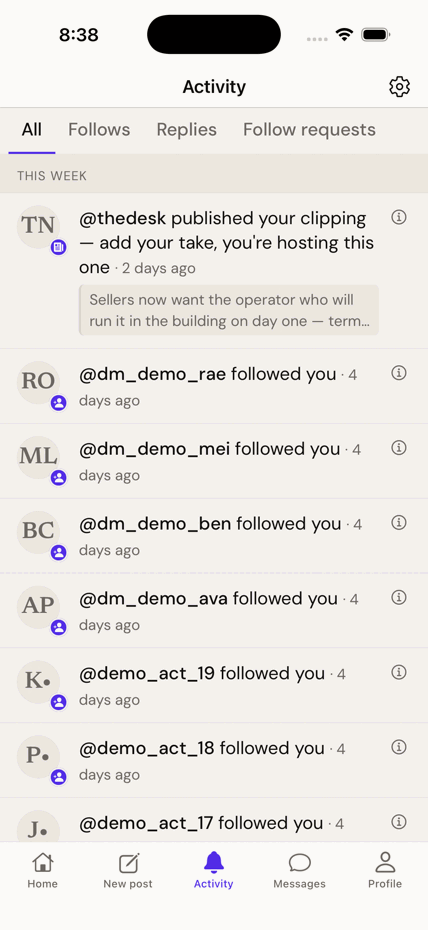
- New followers now have to ask. Their requests wait in the Activity tab, under Requests — approve or decline each one there.
- "Only approved followers can see your activity."
- Your follower/following counts are hidden from non-followers too.
Who can see a post you share
Worth knowing before you paste a link into a group chat: Shiijak has a public front door. Anything you post from the app that isn't private can be read by someone who has no account at all, if they have the link.
- Public posts and public profiles open for anyone. A link you share works for people who aren't members — they can read, but they can't reply, like or follow without joining.
- Topics, Sections, the Newsstand and Explore are readable without an account too.
- Everything of yours that matters — your feed, composing, messages, saved posts and settings — needs an account.
- If you'd rather none of this applied to you, turn on Private account above.
- To a stranger, a private account, a deleted one, one that has blocked them, and one that never existed all produce the identical page. There is no way to test whether a given person is on Shiijak.
Share Your 10
Ten things you'd vouch for, in each of eight categories — what you read, watch, listen to and love. It's a taste résumé, not a follow list.
- Profile → Share Your 10.
- Pick a category: Books, Magazines, Artists, Homes, Vacation Spots, Quotes, Movies, Games.
- Add entries (each up to 200 characters, with an optional note), reorder them, and save.
- Ten items per category — the cap is the point.
- Your lists sit on your profile and follow the same privacy as the rest of it.
Block someone
- Open their profile → the ··· menu → Block.
- Blocking is mutual and silent: you both vanish from each other's view, and they aren't told.
- Muted accounts and muted words have review lists in Settings. Blocks don't — to unblock, go back to that person's profile.
Delete your account
- Settings → Delete account (bottom, in red).
- Read what goes and what stays. Posts, likes, reposts and your follow graph are removed; your username is retired for good.
- Re-enter your password (skipped if you only ever signed in with Google or Apple).
- Type your @username exactly to arm the button, then confirm.
- You have 30 days to change your mind: just sign back in and choose Keep my account. No password gymnastics.
- After 30 days it's permanent, with no recovery path.
- Messages you sent stay in the other person's inbox, attributed to a deleted account. You can't reach into someone else's mailbox.
7 · Settings & appearance
Making it look and behave the way you want.
Change the theme (light / dark)
- Profile → Settings → Appearance.
- Choose Light, Dark, or follow your phone's setting.
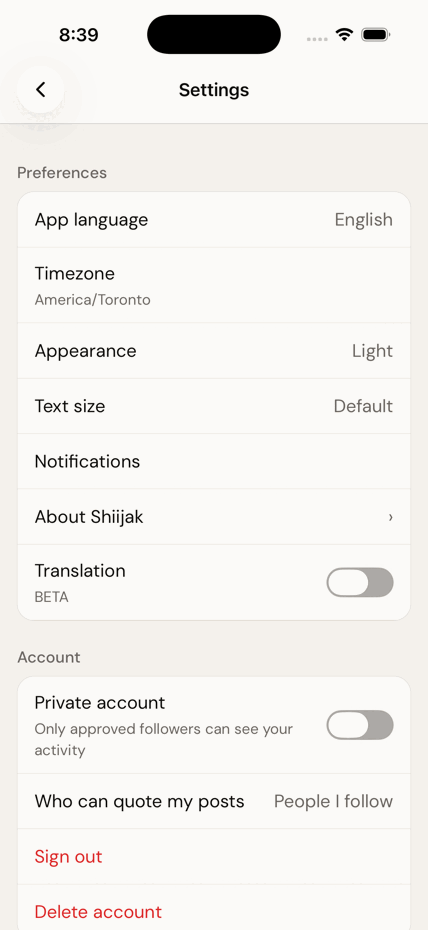
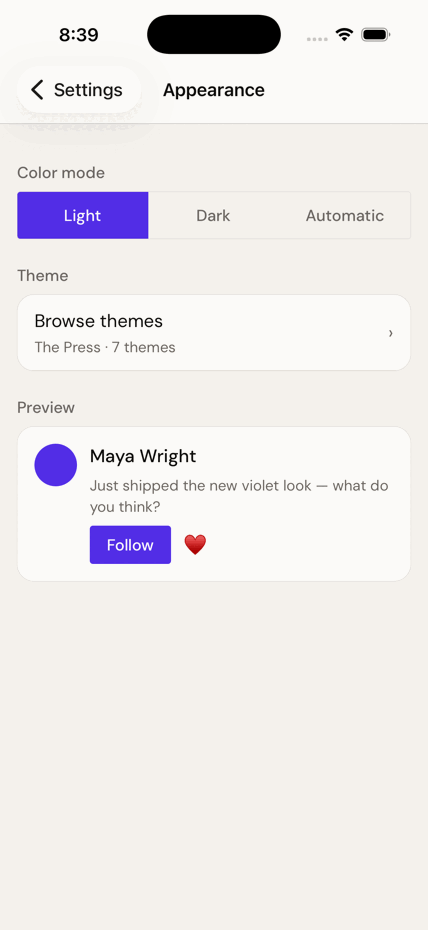
This is the app's light/dark theme. The colour you can give a single conversation (chapter 5) is a different, private thing.
Change the app's colours — the Theme Store
Beyond light and dark, the app itself can wear a different palette.
- Settings → Appearance → Theme Store.
- Tap a theme under Free to apply it immediately.
- Themes marked 🔒 Premium aren't purchasable yet — they're shown, but locked.
Make the text bigger
- Settings → Text size.
- Pick one of five sizes from the list — Small, Default, Large, Larger, Largest. It applies the moment you tap; there's nothing to save.
- A live Preview card underneath shows what a post will actually look like at that size.
- This setting sits on top of your phone's own text-size setting — so if you've already made text large in iOS or Android, Shiijak starts from there and this makes it larger still.
- At the bigger sizes the app reflows rather than shrinking or cutting text off: rows grow taller and side-by-side controls stack.
Change the language
- Settings → App language.
- Pick from 18 languages, each shown in its own script. By default the app follows your phone.
- Set your Timezone here too — it decides how every timestamp reads.
Arabic flips the entire layout right-to-left. Switching into or out of it needs a full restart of the app before everything settles.
Notifications & sounds
- Settings → Notifications.
- Choose what's worth interrupting you for — follows, replies, mentions, messages.
- In-app message sounds are here too (not in the DM settings screen), along with five sound choices and a Pause notifications schedule.
- Everything that happened to you is in the Activity tab, whether or not it buzzed your phone.
- A message notification only ever says "New message" — never the sender, never the text. Anyone glancing at your lock screen learns nothing.
Translation Beta — off by default
- Settings → turn on Translation (marked BETA).
- There is no Translate button. Posts in another language are simply translated for you as you read.
- The original always stays visible underneath, with a quiet "Translated from …" line. You're never shown a translation instead of the words someone actually wrote.
Translation is off in the shipping app. Very short posts, and posts already in your language, are skipped even when it's on.
Two-factor authentication — not in the app
If you've scrolled Settings looking for it: it isn't there, and you haven't missed it.
Two-factor lives at /settings/two-factor on shiijak.com — there is
no screen for it in the phone app. Set it up in a browser (scan the code with an authenticator
app and keep the backup codes somewhere safe); it then protects your account everywhere, including
here. It's required for admins and optional for everyone else.
8 · When something's wrong
Reporting, complaining, and the honest list of what isn't finished.
Report a post or a message
- A post: ··· menu → Report, then pick a reason.
- A message: press and hold it → Report.
- Reports are reviewed by a human moderator. You're told the outcome, and you can appeal a decision made about your own content.
Something's broken, or you hate a feature
Shiijak is young and honest about it. If a feature annoys you, that's useful information.
- Most things you dislike can be turned down rather than endured — check Settings first (ranking reset, mutes, muted words, notification switches, quote permissions, DM permissions).
- Still wrong? Tell us — include what you tapped, what you expected, and what happened.
Known gaps — things that aren't there yet
You can't unsend a message. Once a DM is delivered, it stays. You can only cancel one that hasn't sent yet.
There's no list of people you've blocked. Muted accounts and muted words have review lists; blocks don't — unblock from the person's profile.
Stickers, message reactions and conversation colours are off in the shipping app and phone-only when on. The web has none of them.
Video calls are web-only — the phone app's calling is switched off.
Translation, Assist and the Edition are switched off in the shipping app.
Sticker art is a placeholder. The drawn sets are stand-ins for commissioned artwork.