For the iPhone and Android app
1 · Getting started
Making an account, getting in, and the first five minutes.
Contents
Create an account
Install Shiijak on your iPhone or Android phone and open it. You can join with an email and password, or with Google or Apple — either way you land in the same place.
- Open the app. You'll meet a short intro carousel; tap Claim my spot at the bottom. (Already a member? Tap Sign in beside it.)
- Fill in your email, the @username you want, a password, and your display name — the name people actually read. A short bio is offered, and it's optional.
- Or skip all that: tap Continue with Google / Continue with Apple.
- Allow notifications when the phone asks, unless you'd rather not — you can change it later in Settings → Notifications.
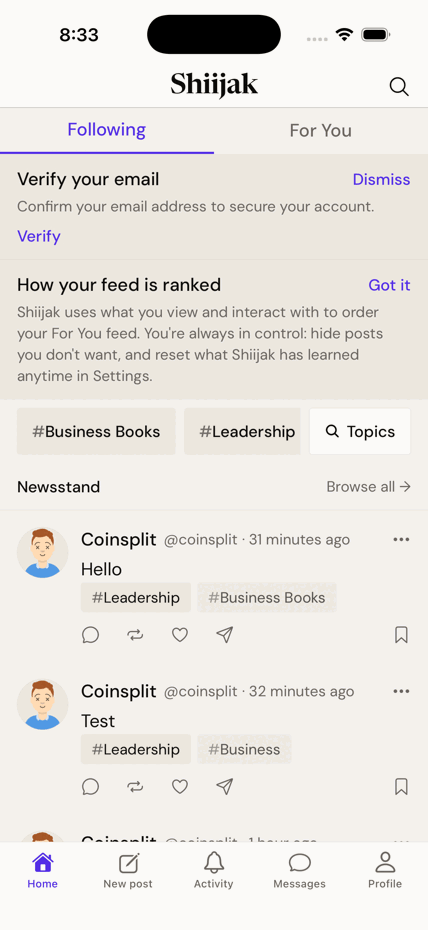
- We email you a verification link. You can look around before clicking it, but verify soon — a banner at the top of your feed keeps nudging you.
- Finally, pick what you're into — you choose starter topics (Books, Magazines, Life Lessons), not people. Tap the cards, then Go to my feed. You can Skip and decide later.
Rules
- Display name is required — not optional, despite what older screens implied.
- You must be 16 or older.
- A username can be changed later; old links to your profile keep working for a while.
If Google sign-in is the only way you joined
Signing up with Google or Apple creates no password. If you later try to sign in with an email and password, the app will tell you the account uses social sign-in and hand you the right button — it isn't a wrong-password problem, and there's nothing to reset.
Sign in and sign out
- Sign in with email + password, or the same Google/Apple button you signed up with.
- Forgot it? Choose Forgot password and follow the emailed link.
- To sign out: Profile → Settings → Sign out (at the bottom, in red).
Heads up
If you signed up with Google or Apple, you have no password to reset — use the same button to get back in.
The five buttons at the bottom
Everything in the app hangs off these: Home, New post, Activity, Messages, Profile.